Virtual TimeClock Payroll Integration
Virtual TimeClock Pro and Network editions integrate with many popular payroll systems and software. Payroll integration eliminates the time-consuming chore of manually entering hours into your payroll program and the common problem of data entry errors.
Version 26 added a major new capability: a one-page configurator that builds a payroll integration file for nearly any payroll system, so if your provider is not on the included list, you can set up the integration yourself in minutes.
This article covers both paths: using one of the included integrations, and building your own custom payroll integration.
Setting up an included payroll Integration
Virtual TimeClock includes ready-to-use integrations for popular payroll providers. To utilize the payroll integration feature you will need to complete a one-time setup in your Virtual TimeClock setup. Follow the steps below:
- Select Turn Administration On from the File menu.
- Choose Payroll Settings from the Configure menu.
- Select your payroll software from the Payroll Export pop up menu.
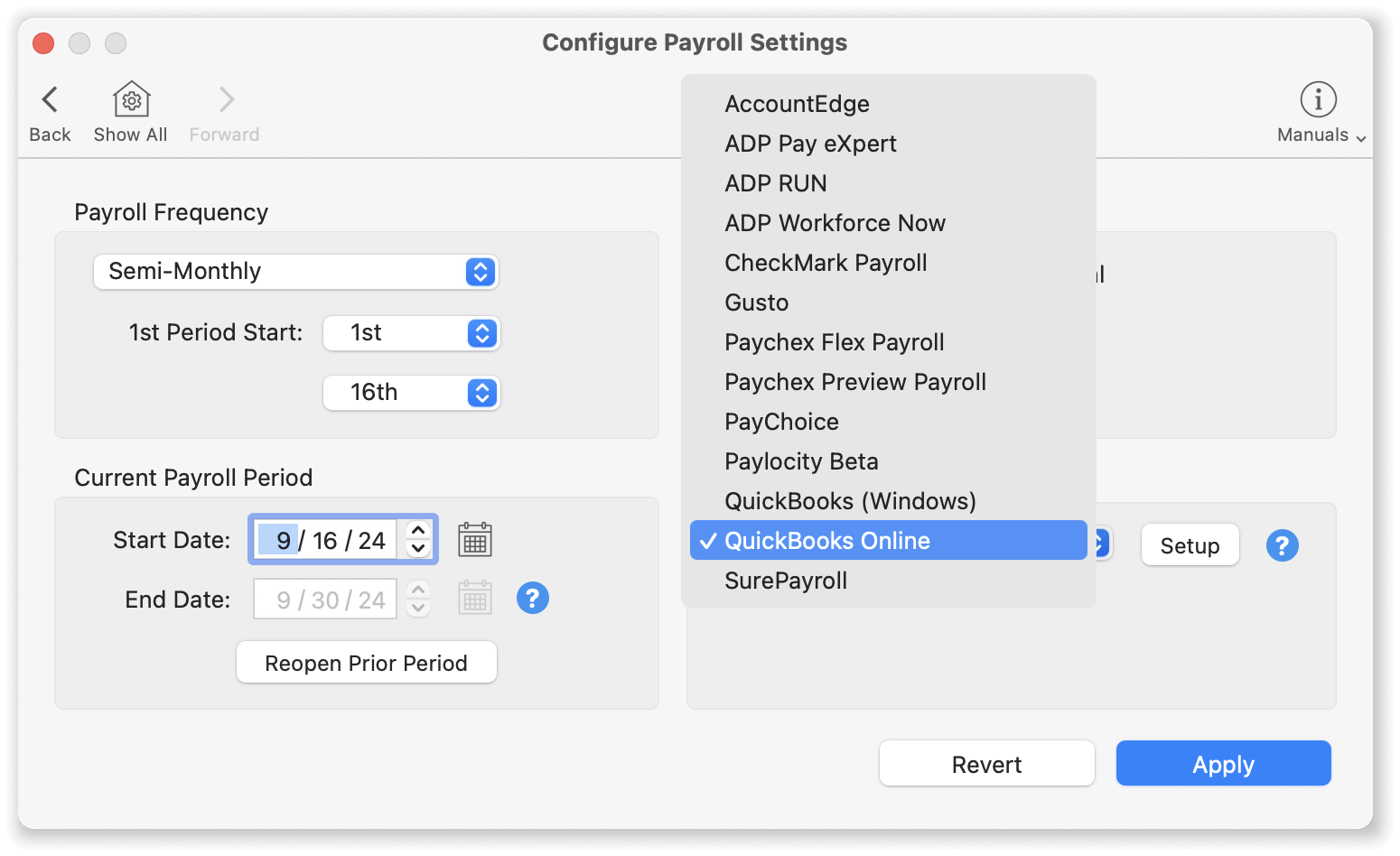
- Click Setup to configure the integration file.
- Download the Payroll Integration Guide for your payroll provider and follow the step-by-step setup instructions:
Building a custom payroll integration (new in version 26)
If your payroll provider is not on the included list, the custom integration builder creates the export file for you. The builder grew out of customer requests for small and regional payroll providers: instead of waiting for a new template, you map your provider's format once on a single page and export them form then on, just like the built in payroll integrations.
To create a new custom payroll integration:
- Select Turn Administration On from the File menu.
- Choose Payroll Settings from the Configure menu.
- Select New Payroll Export from the Payroll Setup popup menu.
- Map the fields from the template format provided by your payroll provider - worker, dates, hours, and any earning codes - and set the file format.
- Save the integration. It appears in the Payroll Setup popup alongside the included integrations.
[COMING SOON: SCREENSHOT 2: The one-page configurator screen, filled in for an example provider.]
Using the Payroll Integration
Once you have completed the payroll integration setup (built-in or custom) and selected it the Payroll Setup popup in the Payroll Settings Window, you will have the option to export your payroll integration file during the Payroll Approval process.
Note: Please contact us if you do not see your payroll provider listed. A number of payroll services actually use the backend payroll systems of a national provider, and we can point you to an existing Integration Guide that works with your payroll service. And with the version 26 builder, we can often walk you through configuring a custom integration for your provider.
Related articles
If you’re looking for a payroll provider, Virtual TimeClock has partnered with SurePayroll® with a special offer and pricing for your payroll needs. Click to learn more.
Redcort Software Inc is not affiliated with any of the following companies in any way:
Acclivity AccountEdge is a trademark of Acclivity Group, LLC. ADP Pay eXpert, Workforce Now, and Run are trademarks of ADP, LLC. CheckMark Payroll is a trademark of CheckMark, Inc. Gusto is a trademark of Gusto, Inc. Paychex Preview & Paychex Flex are trademarks of Paychex, Inc. PayChoice Payroll is a trademark of Sage Software, Inc. Paylocity is a trademark of Paylocity Corporation. QuickBooks is a trademark of Intuit, Inc. SurePayroll is a trademark of Paychex, Inc.