The Time Off Calendar
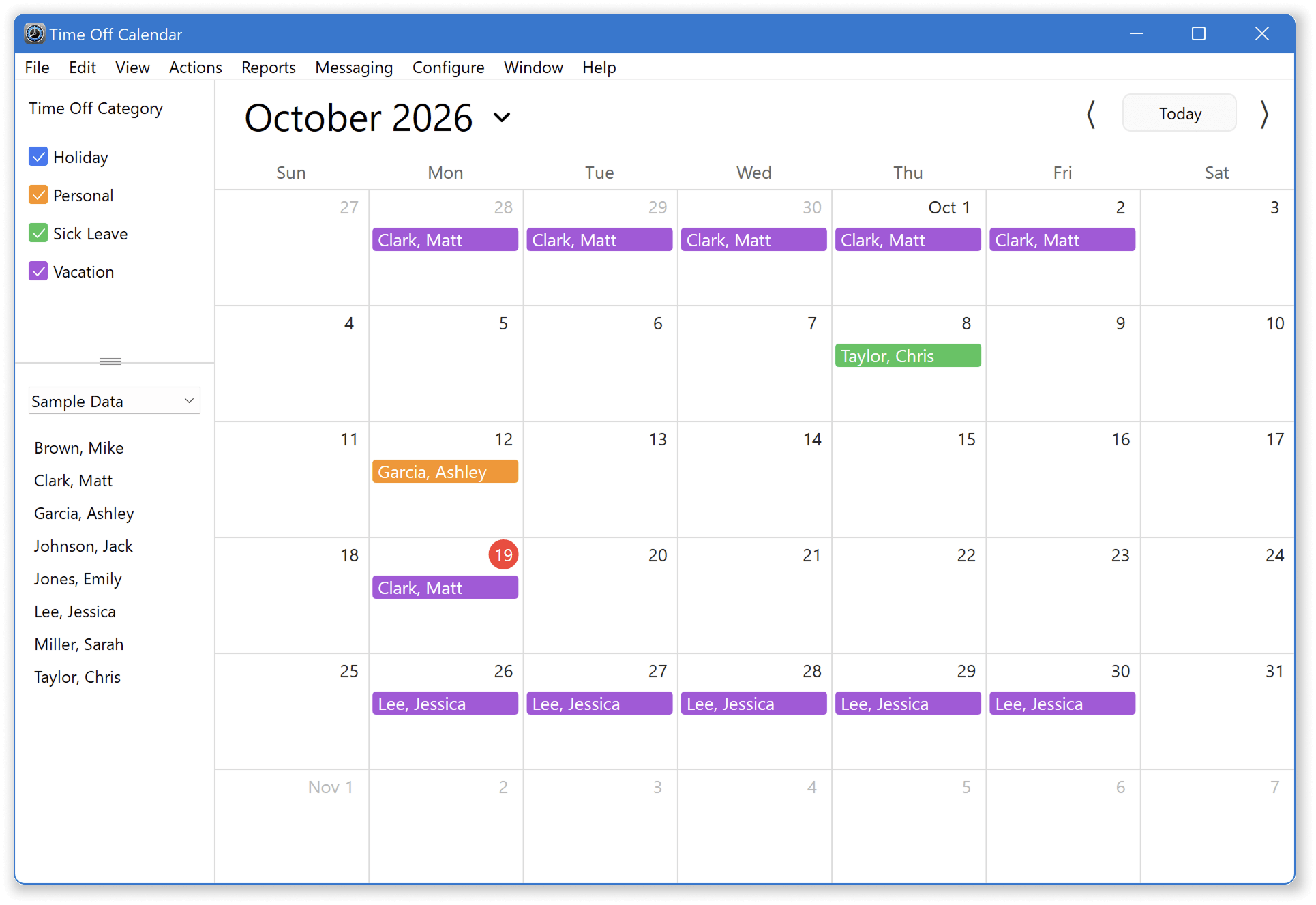
The Time Off Calendar was introduced in Virtual TimeClock 26. It shows approved time off on a monthly calendar: who is out, when, and for what. Instead of reading down a list of leave entries, managers and administrators can see a week or month at a glance, add new entries, make changes, and filter the view to exactly the people they care about.
Opening the Time Off calendar
- Select Turn Administration On from the File menu.
- Select Time Off from the Administrative toolbar or File menu.
Viewing and filtering the calendar
Approved time-off entries appear on the calendar on their scheduled days. Use the filters to narrow the view:
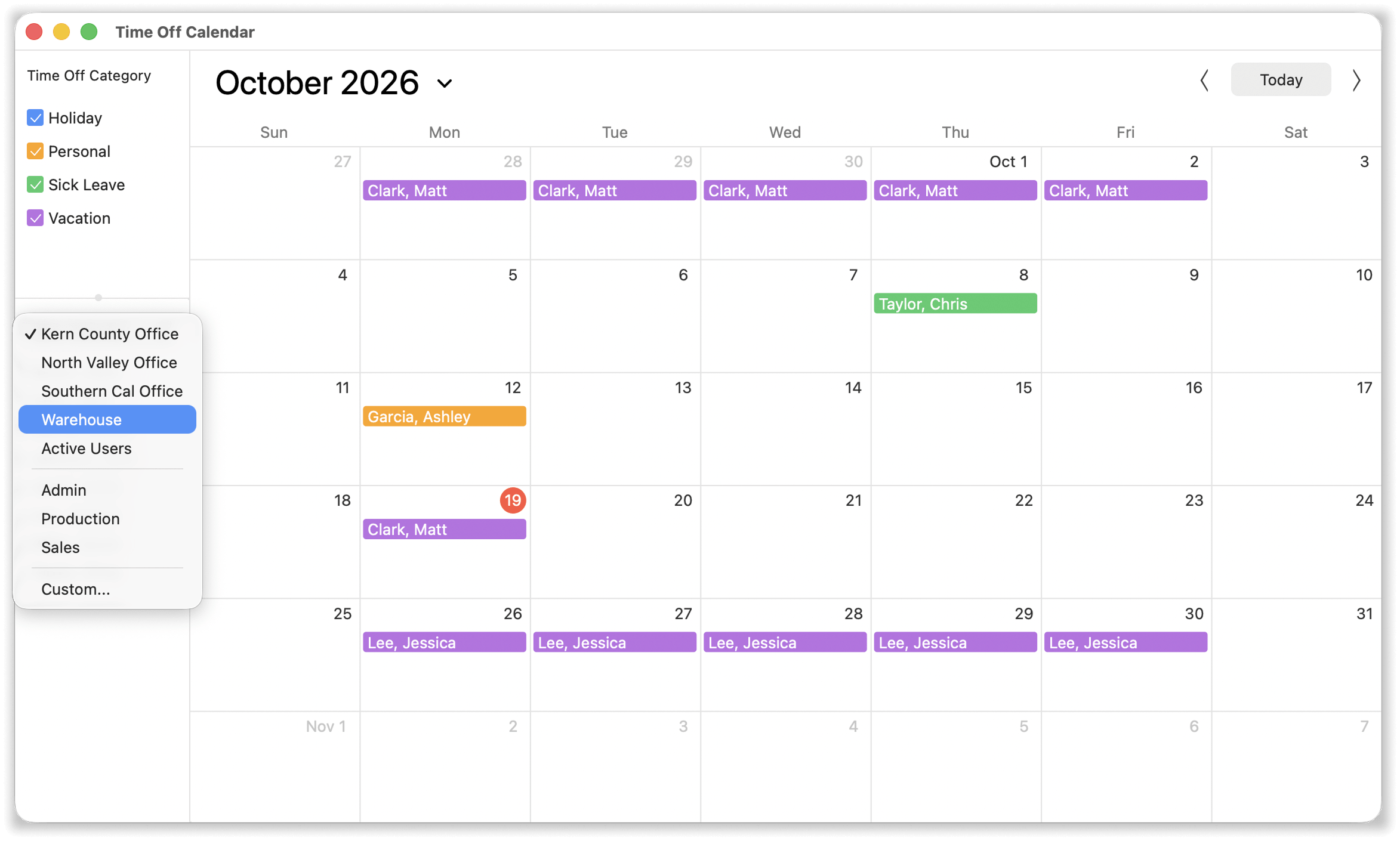
- Filter by group to see one display group at a time.
- Filter by department to see a single department's leave.
- Filter by time-off type (vacation, sick, and your other configured types).
Filters combine and are cumulative, so selecting the Vacation and Personal categories with the Sales department selected shows everyone in Sales who has approved Vacation or Personal time off that month.
Adding a time-off entry
- Right-Click the day the leave begins.
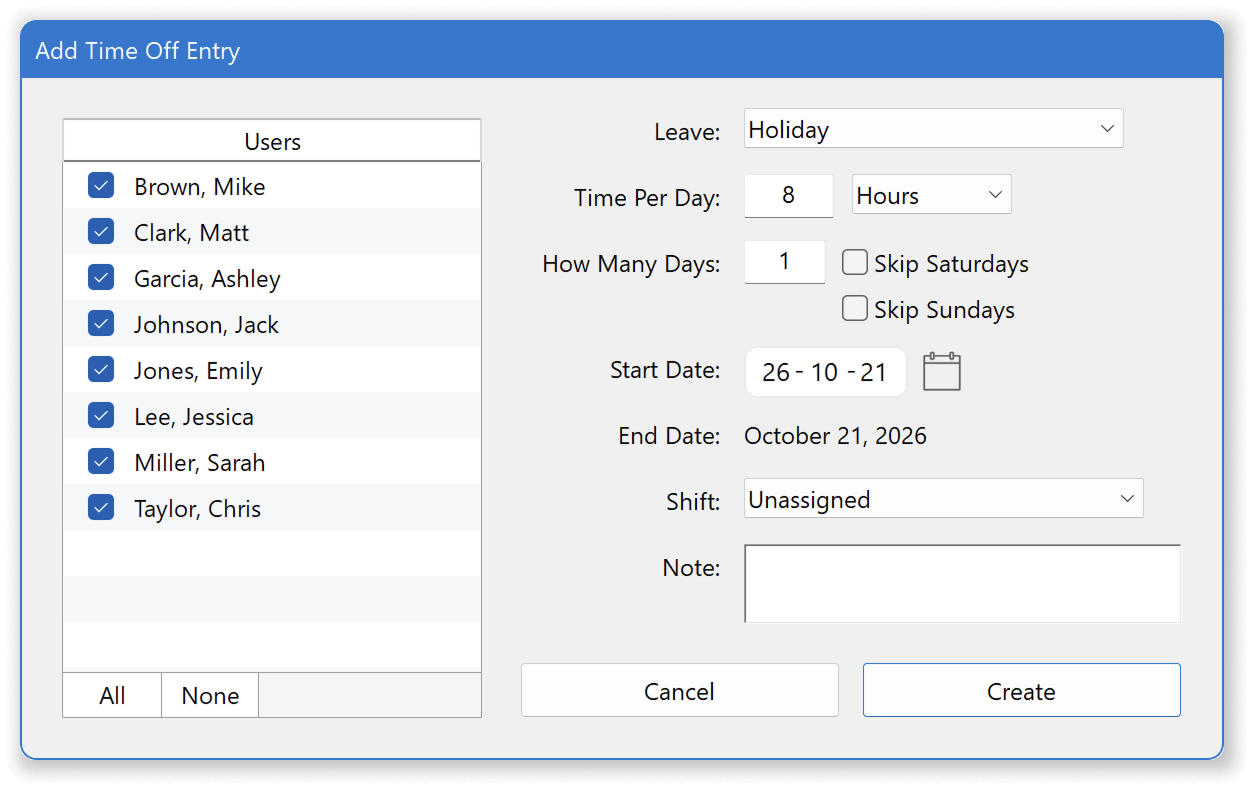
- Select the worker(s), time-off type, time, and dates.
- For multi-day entries, choose whether to skip Saturdays and/or Sundays. Your choices are remembered for the next multi-day entry.
- Save the entry. It appears on the calendar immediately.
Modifying or deleting an entry
- Double-Click a day for a Day View to see all entries for that day.
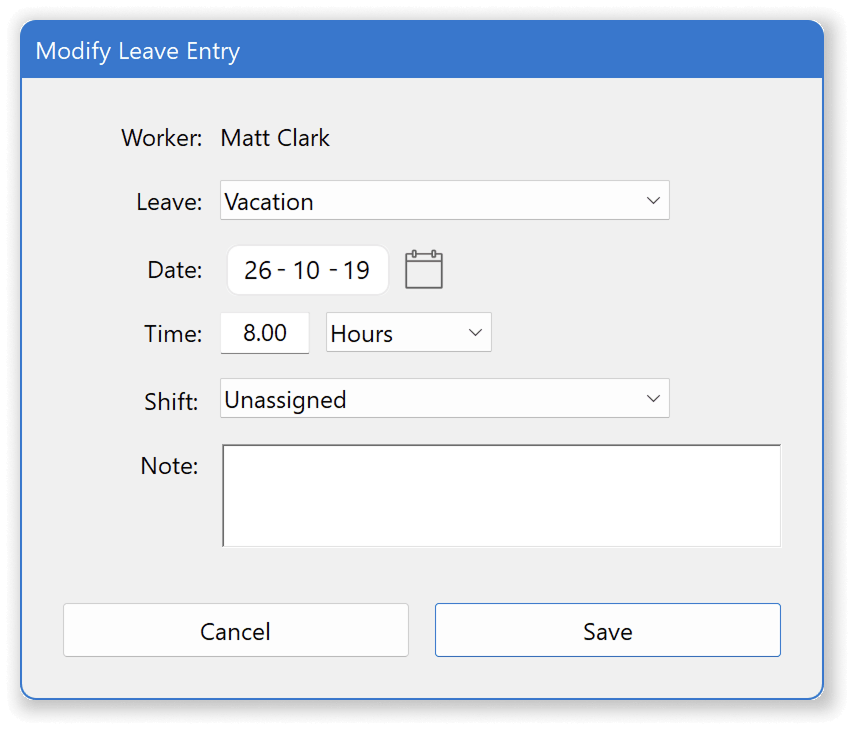
- Right-Click an entry to Add, Edit, or Delete an entry.
- Drag and drop an entry to change the day of the entry.
Notes
- The calendar shows time off that has been approved. All approved hours will appear on the worker's timecard for the date.
- Multi-day entries remember your skip-weekend defaults - set them once and the next entry takes fewer clicks.