A faster, cleaner In/Out Board in Virtual TimeClock 26
This post is part of a series about new features in Virtual TimeClock 26.
The In/Out Board is the screen most teams see all day, every day. Virtual TimeClock 26 makes it easier to read, easier to search and easier to use without a mouse.
A modern layout
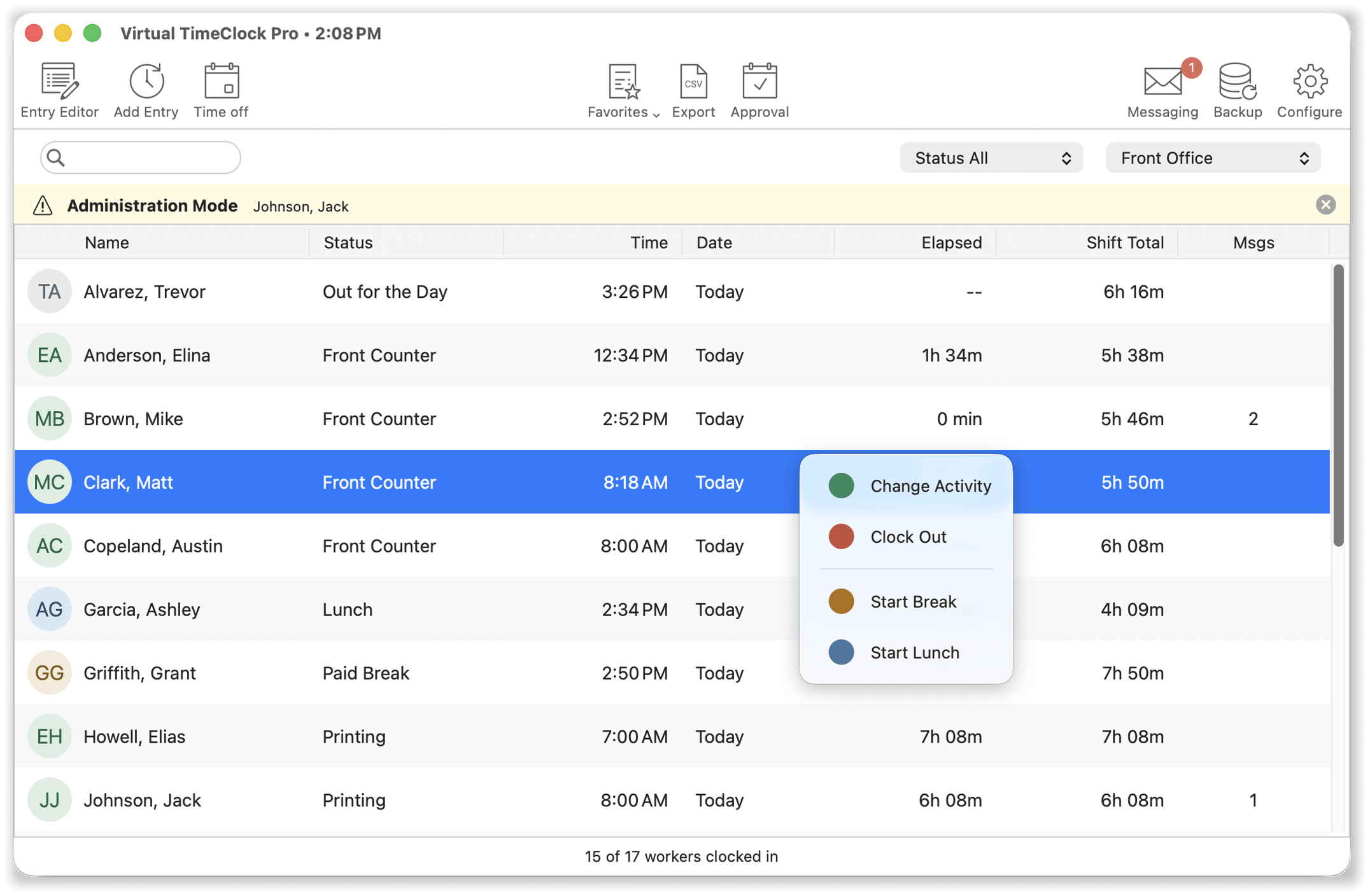
Use new variable row heights with enhanced column resizing to fit your screen, and spot people quickly with worker monograms and updated colors.
Find people fast
On a large board, type a name and go straight to that worker. After someone clocks in or out, their name stays selected, so you can keep working without finding them again.
Filters for administrators
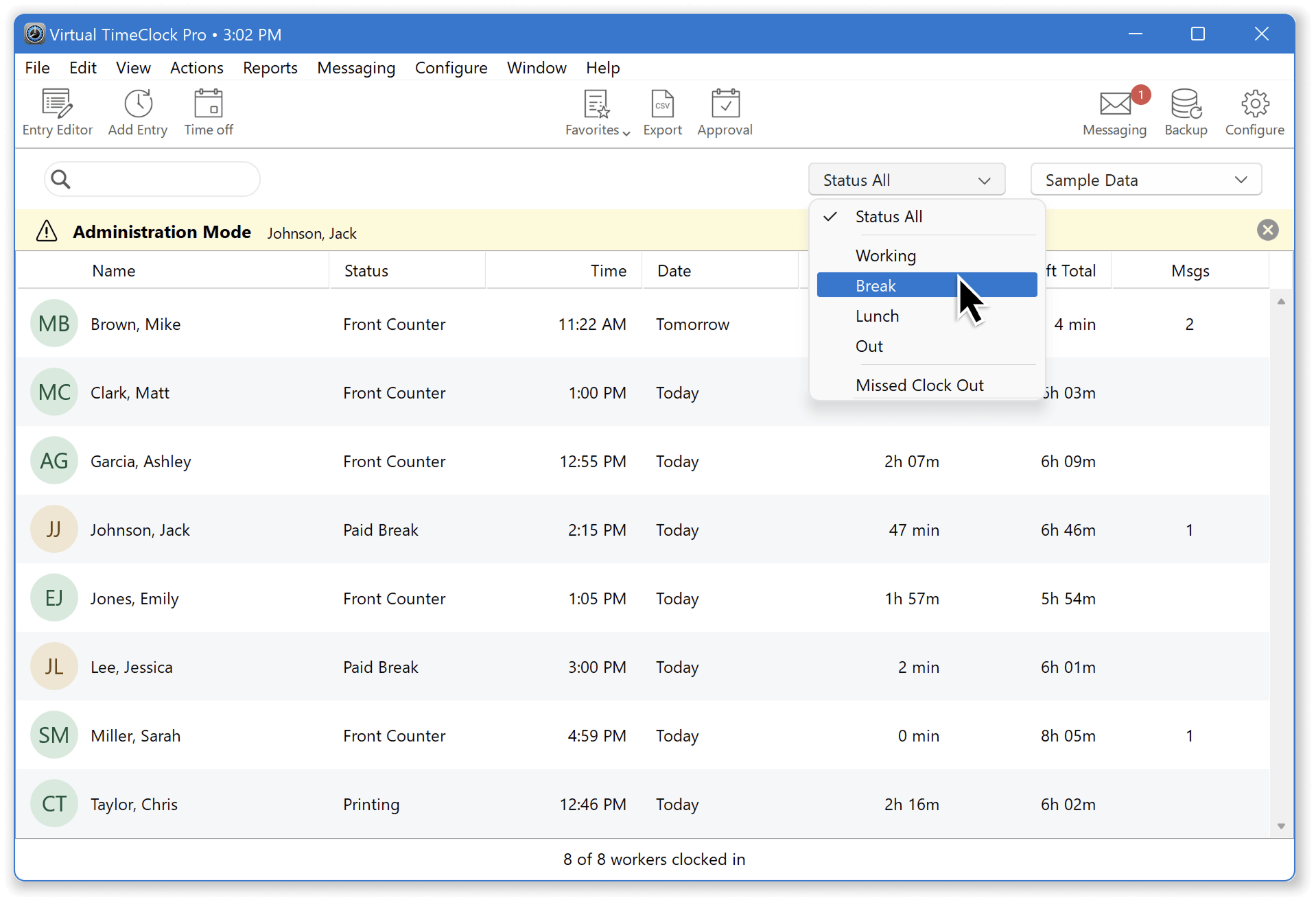
Administrators can show only the workers who are Clocked In, Clocked Out, On Break, at Lunch, or Missed Clock Out. A missed clock out stands out in seconds.
Know how long the shift has run
The In/Out Board and the Individual, PIN and Passcode screens can show elapsed time since the start of the shift or elapsed time on the current activity. Turn on the one your team wants, or none. This is useful for workers watching for daily overtime.
Keyboard friendly
The In/Out Board and the Actions & Reports menu work from the keyboard, with no mouse needed.
Why it matters: the board is where people clock in, managers check status, and problems show up first. Small speed-ups add up across a day and a team. For more on setup of the In/Out Board, see the TimeClock Interface Options article in our Knowledge Base.
Questions?
Do you need more information about the new In/Out Board features or upgrading to Virtual TimeClock 26? Contact us anytime. We are here to help.
Check it out for yourself
Learn more about Virtual TimeClock or download a no obligation free trial to try out Virtual TimeClock 26.